
The Mid/Final Grades tool is used to submit mid-semester and final grades to the Registrar's Banner Student Information System. It is found in CatCourses and can only be accessed by the Instructor of Record (IOR) for the course. A step-by-step guide can be found here: Submitting Mid-Semester and Final Grades to an external site... This page contains definitions and information on how the Mid/Final Grades tool works.
The Gradebook tool refers to the Grades item found in the navigation bar on the left side of a course page. It is the tool that instructors use to enter grades for individual assignments.
The Mid/Final Grades tool refers to the Mid/Final Grades item found in the navigation bar on the left side of the course page. It is the tool that instructors use to submit mid-semester and final grades.
Layout, Overview, and Definitions
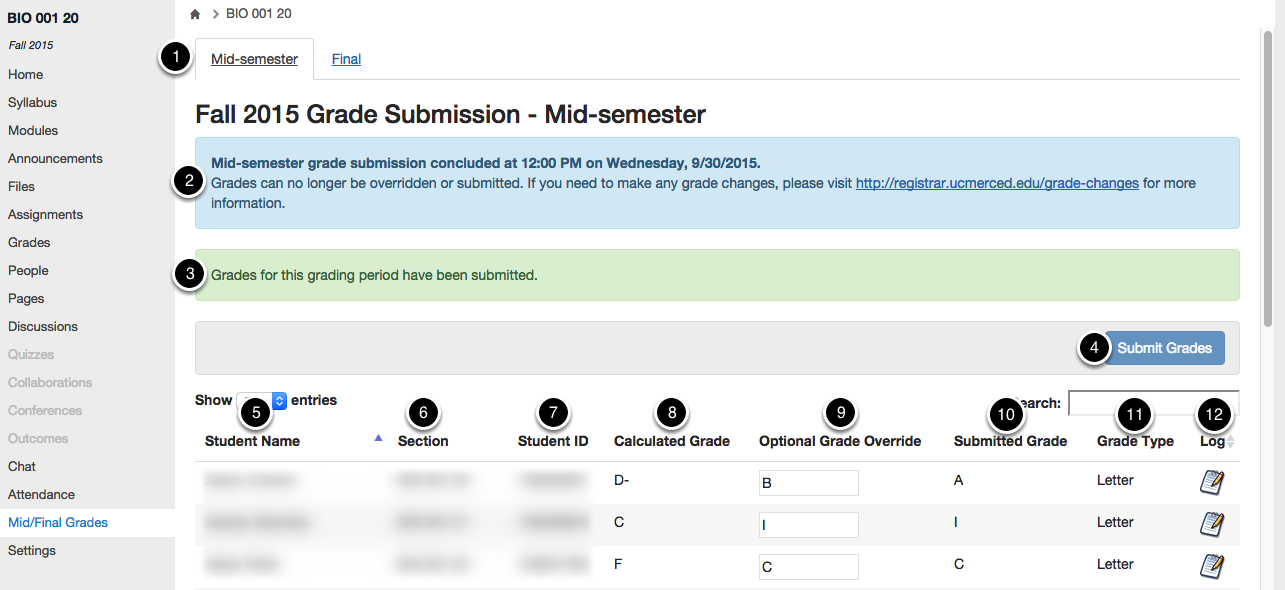
1. Grading Period Tabs: For courses that are required to submit mid-semester grades, the tabs at the top allow an instructor to choose the grading period for which they want to enter and submit grades. If a particular grading period is open, it should open to the relevant tab.
2. Grade Submission Period Message: The blue box will display the dates on which the grading submission period is open until the submission deadline has passed. When the submission deadline has passed, this box will inform instructors that grades can no longer be overridden or submitted.
3. Grade Submission Status: The green box displays status messages related to grade submission and indicates when grades have been successfully submitted.
4. Submit Grades Button: This button will submit the Calculated Grades or Optional Grade Override grade to the Registrar's Banner Student Information System. All students must have a grade before grades can be submitted. If an Optional Grade Override is not entered, the Calculated Grade is submitted.
5. Student Name: Displays the names of the students in the course in the format of Last Name, First Name.
6. Section: Displays the section a student is enrolled in, which helps differentiate between cross-listed and linked courses.
7. Student ID: Lists the student ID numbers, which are necessary for submitting grade changes after the submission deadline.
8. Calculated Grade: This grade is pulled from the Total column in the Grades section, which is the total score for the student based on grades entered into the Grades section of CatCourses. Ungraded assignments (shown as dashes in the Gradebook) are ignored and not calculated into the Total grade.
9. Optional Override Grade: If the Calculated Grade is incorrect for a student or a modified grade needs to be submitted, the instructor can enter the correct grade in the Optional Grade Override box and it will be submitted instead of the Calculated Grade. If the Optional Grade Override box is empty, the Calculated Grade is submitted for the student in question.
10. Submitted Grade: Once grades are submitted for a course, this column will display the grade that was submitted. An instructor can resubmit grades multiple times until the Grading Submission Period closes.
11. Grade Type: This lists the grade type for a student. The possible types are Letter, Pass/No Pass, or Satisfactory/Unsatisfactory.
12. Log: Clicking on this button will display all grade activity for that student, including things like "Entered override grade” and “Submitted course grade from override”. It also lists who performed each action and when the action was performed.
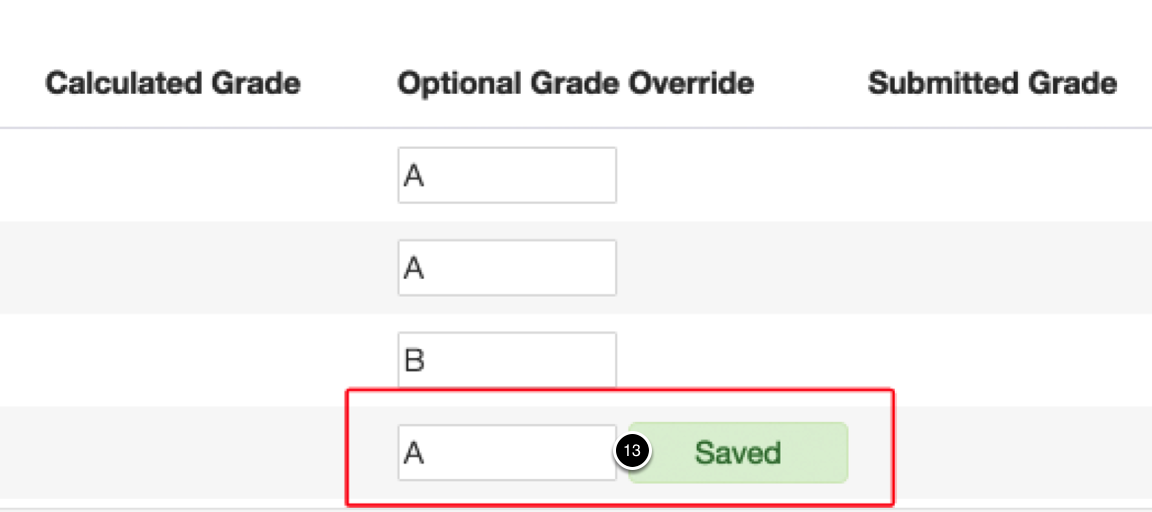
13. Grade Override Status: A message will appear after an Override Grade is entered.
“Saved” means the grade has been saved in the system (This does not indicate submission).
“Invalid Grade” means a grade was entered that does not match the Grade Type for a student.
FAQs
How do I submit mid-semester and final grades?
Please find a step-by-step guide on submitting grades in IT's Knowledge Base, located here: Submitting Mid-Semester and Final Grades
I made a mistake in a grade I submitted for a student. Can I resubmit it?
Grades can be submitted as many times as an instructor wishes until the grade submission deadline has passed. After the deadline, a grade change form must be submitted to the Registrar. More information on grade change forms can be found here: http://registrar.ucmerced.edu/grade-changes
Why can't I click the Submit Grades button?
The Submit Grades button is only available when the Grading Submission Period is open. Override Grades can be entered and saved, but cannot be submitted until the Grading Submission Period is open. The dates of the Grading Period are displayed in the blue box near the top of the page.
I'm getting an error when using the Mid/Final Grades tool. Who do I contact?
Please use the Help function in the upper right-hand corner of CatCourses to report errors. Any additional detail that can be provided is appreciated.
Where can I find more information on how to use the Gradebook tool in CatCourses so that I get the Calculated Grade I expected based on my grading scale or course curve?
Please visit the guides here: https://community.canvaslms.com/docs/DOC-4131#jive_content_id_Grades
When will students get access to see their Mid-semester or Final Grade?
Grades will be available to students once they have been submitted for a course by the Instructor of Record.